Bulk edit and update items
About bulk editing and bulk actions
Bulk editing allows you to make changes to multiple existing items and descriptions and up to 250 variations at the same time. With bulk actions, you can update several item categories, fulfillment methods, menu groups and more.
- Item name
- Item customer-facing name
- Item type
- GTIN
- SKU
- Categories
- Reporting category
- Price
- Online sale price
- Sold by
- Weight
- Default vendor
- Vendor code
- Unit cost
- Locations
- Description
- Age restriction
- Chanel listing attributes
- Custom Attributes
- SEO Title
- SEO Description
- SEO Permalink
- Is alcoholic
- Calorie count (calories)
- Dietary preferences
- Contains the following (select common food allergens)
- Kitchen name attribute
- Online fulfillment methods
- Nutritional Information
- Modifiers
- Menus
From item library:
- Update site visibility (can be scheduled)
- Update sales channels
- Update categories
- Update fulfillment methods
- Update online sale price (can be scheduled)
- Update low stock alert
- Set as non-taxable
- Set as contains alcohol
- Archive
- Delete
From menus:
- Edit locations
- Edit channels
- Edit modifiers
- Archive
- Delete
Before you begin
You can bulk edit and bulk update items from Square Dashboard.
Bulk editing is different from bulk importing. Learn how to bulk import items.
Some bulk actions can be scheduled ahead of time for items displayed online. Learn how to schedule item updates.
Bulk edit items
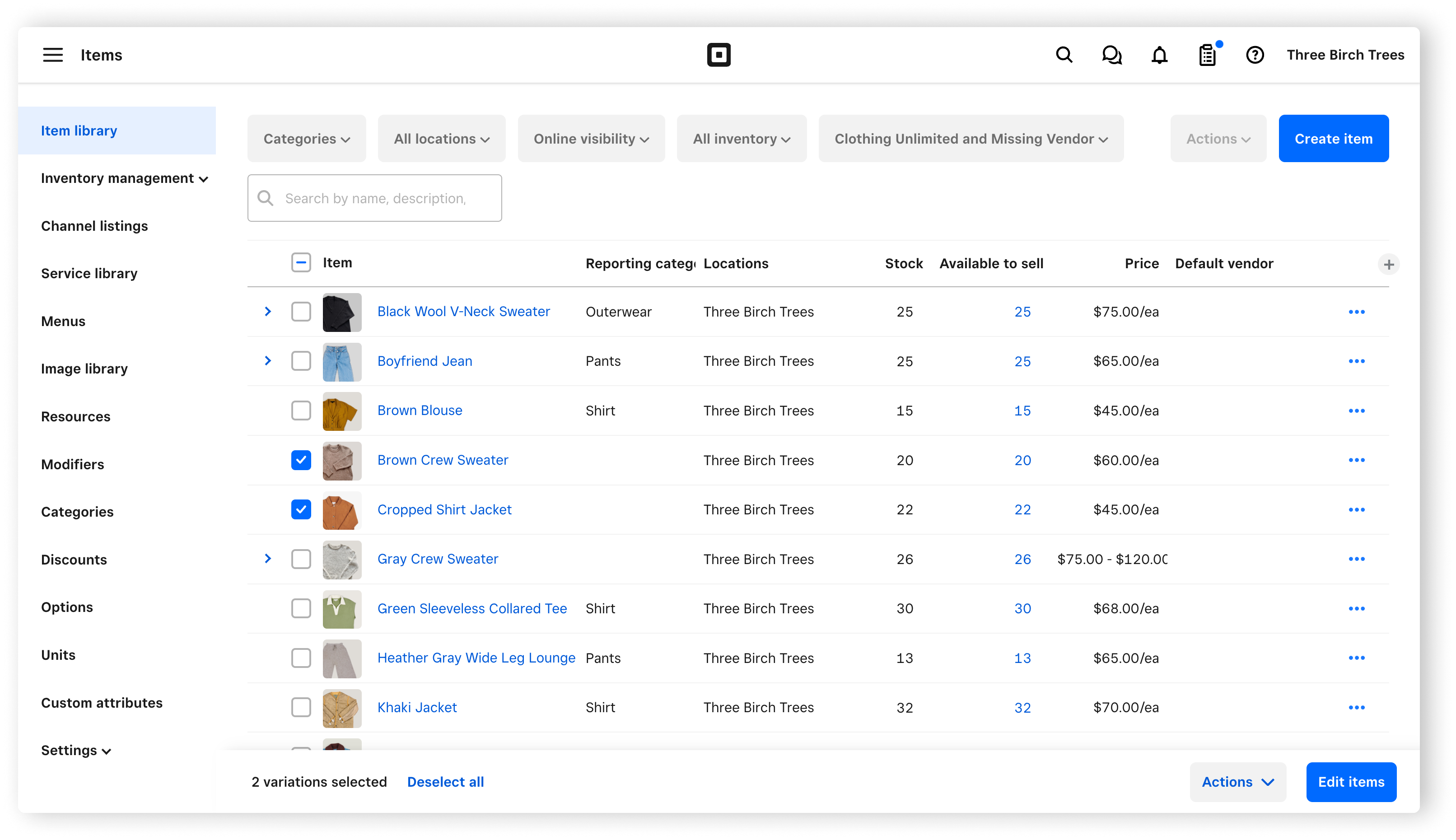
Sign in to Square Dashboard and go to Items & services (or Items & menus or Items & inventory) > Items > Item library.
Check the box next to each item you want to edit. Check the box at the top of the item column to select all items.
Click Edit items at the bottom of the page.
Click the Attributes drop-down menu and select the attributes you want to show in the bulk edit item view.
-
You can edit one cell at a time or across multiple cells:
To select all cells in a column, click the column header.
To select multiple adjacent cells, press and hold Shift on your keyboard, then click the first and last cells in a range.
To select specific cells that aren’t adjacent, press and hold Ctrl or ⌘Cmd on your keyboard and click each cell.
Make the changes to your items, descriptions or variations.
Click Update variations.
Update multiple items with bulk actions
- Sign in to Square Dashboard and go to Items & services (or Items & menus or Items & inventory) > Items > Item library.
- Use the item filters to narrow down your item search.
- Check each item you want to update to see the corresponding bulk actions appear under Actions.
- Sign in to Square Dashboard and go to Items & services (or Items & menus or Items & inventory) > Menus.
- Expand your menu.
- Check each item you want to update to see the corresponding bulk actions appear under Actions.