Set up accessibility features
About accessibility
Accessibility tools help accommodate customers who can benefit from additional visual or audio assistance during order placement and checkout. These tools can adjust contrast and size of the text written on the screen for visual assistance, and read verbal instructions aloud for audio assistance.
You can enable magnification to enlarge a selected portion of Square Terminal and Square Handheld, or the main display on your Square Register, allowing you to zoom in and out with ease.
You can also adjust your accessibility settings to have personally identifiable information (PII) read aloud or not read aloud. Personally identifiable information (PII) is any data that, when used alone or with other relevant data, could be used to identify a specific person. PII includes the customer’s name, email address, home address and phone number.
Before you start
You have two options for setting your device up to play audio of what is shown on screen aloud:
Turn TalkBack on from Square Terminal, Square Handheld, Square Register or an Android device.
Turn VoiceOver on from an iOS device or Square Stand.
Both TalkBack and VoiceOver work with a connected Square Reader (1st and 2nd generation).
To turn magnification on, you need access to your Square Terminal, Square Handheld or Square Register.
From an Android device, you can also adjust your accessibility settings to have customer information read aloud on Square Point of Sale.
Turn TalkBack on
You can turn TalkBack on from your Square Terminal, Square Handheld, Square Register or Android device.
- Turn on your Square Terminal, Square Handheld or Square Register.
- If you are signed out, you can tap Change Settings > Accessibility. If you are signed in, tap ≡ More > Settings > Hardware > Accessibility.
- Toggle TalkBack ON.
TalkBack is automatically enabled on the Square Terminal, Square Handheld and on the customer display for Square Register when headphones are inserted into the headphone jack. Square Handheld comes with a USB-C headphone jack adapter.
- Open the Settings app on your Android device.
- Tap Accessibility > TalkBack.
- Toggle TalkBack ON.
- You can also turn TalkBack on by asking Google Assistant.
The steps to turn TalkBack on may vary depending on your Android device and version. You can also turn TalkBack on by asking Google Assistant. TalkBack features, services and options are managed directly by Android.
Turn VoiceOver on
You can turn VoiceOver on on an iOS device:
Open the Settings app on your iOS device.
Tap Accessibility > VoiceOver.
Toggle VoiceOver ON.
VoiceOver changes the gestures you use to control your iOS device. When VoiceOver is on, you must use VoiceOver gestures to operate your iOS device.
Turn magnification on
You can turn magnification on from your Square Terminal, Square Handheld or Square Register:
Open the Point of Sale app on your Square Terminal, Square Handheld or Square Register. If you are signed out, you can tap Change Settings > Accessibility.
Tap ≡ More > Settings > Hardware > Accessibility.
Toggle Magnification ON.
Once you’ve enabled magnification on your Square Terminal, Square Handheld or Square Register:
Triple-tap the main display screen with one finger to enlarge that area of the display. This is the only magnification level available and cannot be adjusted.
Using a two-finger touch, press, hold and drag two fingertips around the screen to pan around the display.
Triple-tap to stop magnification and revert to a normal display experience.
Use the tactile PIN guide
Your Square Register comes with an accessory for your customer display. The tactile PIN guide for Square Register adds a layer of physical keys to the Square Register’s customer display screen, enabling accessibility for visually impaired customers.
Your PIN guide comes with a Velcro loop so that you can easily attach the tactile PIN guide to the power cable of your Square Register for quick access. We recommend storing your tactile PIN guide near your Square Register to make sure that every customer is welcome at your business at all times.
Depending on whether your customer display is docked or undocked, there are two ways to apply the tactile PIN guide.
If you need to clean your tactile PIN guide, simply use water and an alcohol solution with a lint-free cloth (such as a glasses-cleaning cloth) to wipe away any dust or residue from the back of the guide.
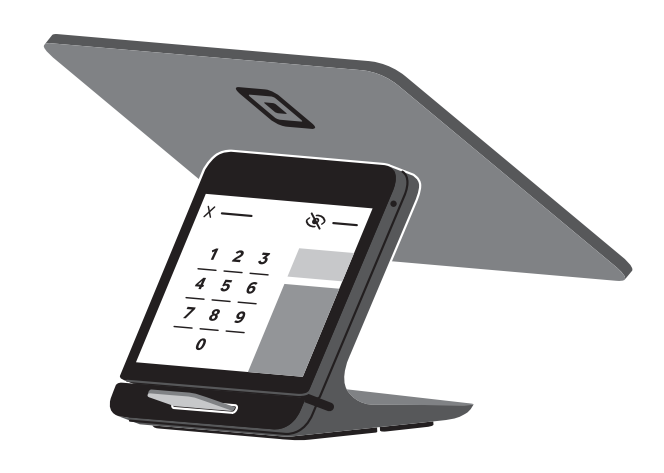
This will enable the tactile PIN guide to properly adhere to the customer display of your Square Register.
Once the PIN screen is shown, enable accessibility mode by tapping the accessibility icon in the top-right-hand corner. Once enabled, instructions will appear on the Square Register screen which will help you guide the customer through how to use the tactile PIN guide.
Note: play instructions through the Square Register audio, or help your customer plug in their own headphones. If your customer would like to use their headphones, make sure they insert them into the headphone jack on the customer display before tapping Accessibility Mode. You can also replay, skip or exit these instructions from the customer display. Interaction with the PIN screen is not affected by headphones being used.
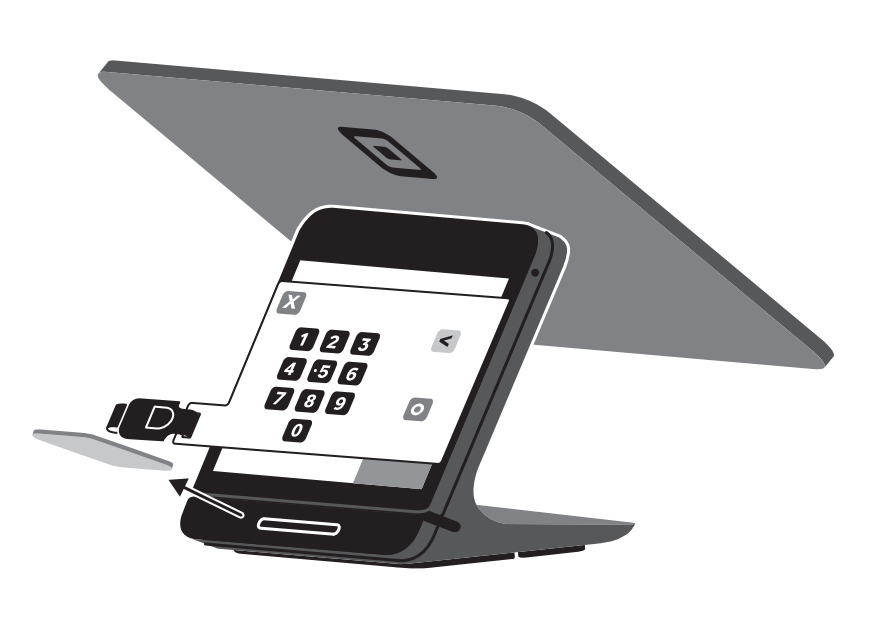
Once the customer has finished reviewing the instructions, the PIN screen will appear on the customer display again. Place the tactile PIN guide at the top of the customer display, aligning the guide with the edges of the illuminated touchscreen and the accessory keys over the corresponding buttons on the customer display. The tactile PIN guide will adhere best when the customer display screen and tactile PIN guide are clean.
Apply light pressure to the corners and edges of the guide to make sure it adheres to the customer display screen, otherwise the tactile PIN guide may slip from the customer display. Be careful not to press any button while you apply the guide; if a number is accidentally entered, use the ‘delete’ key to erase it or allow your customer to do so. Please note that the customer display may beep when the tactile PIN guide is applied.
If you’re having trouble getting the guide to stick, you can try rinsing it with cool water and drying with a lint-free cloth.
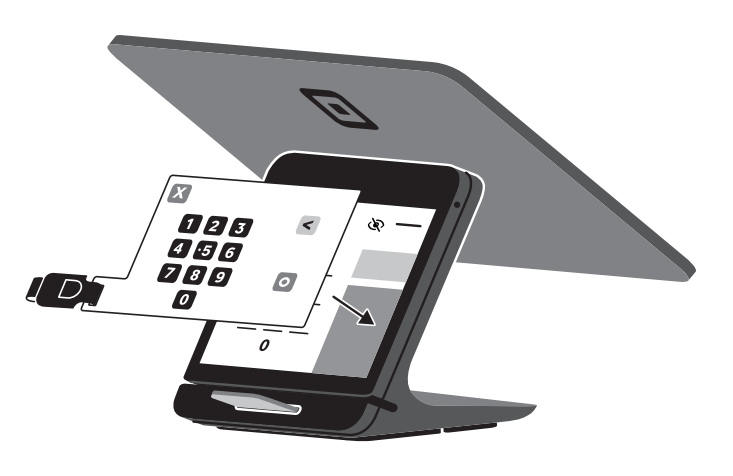
Note: with the customer display in the docked position, the bottom edge of the guide should be nearest to the card slot. If your customer display is undocked from your Square Register, the top edge of the tactile PIN guide should be nearest to the card slot.

Have customer information read aloud by your Point of Sale app
On Android devices, you can adjust your accessibility settings to have customer information read aloud on your Point of Sale app.
Open the Point of Sale app on your android device.
Tap ≡ More > Settings > Hardware > Accessibility.
Toggle Allow accessibility tools to read customer info ON.
Review the customers’ privacy notification and tap Accept.
Enable accessibility and high-contrast mode on PIN checkout screen
High-contrast mode makes use of colour, size and contrast to make the buttons easier to see. It behaves just like the standard PIN screen, utilising taps to enter PIN digits and complete the purchase.
Accessibility mode makes use of audio through headphones or the built-in speaker of Square Terminal (1st generation, v2) and Square Handheld to assist customers in entering their PIN number on the checkout screen.
To enable high-contrast mode or accessibility mode:
From the standard Enter PIN checkout screen, tap the eye icon in the top-right-hand corner.
-
The price confirmation screen will appear with a black background and white text. The instructions will be read aloud to your customer, who can then choose either high-contrast mode or accessibility mode.
High Contrast: Ideal for customers with partial vision. Simply enter the digits as normal, and press the green check button to complete the payment.
Accessibility mode: Ideal for customers who are fully blind. This instructional screen will read aloud a set of instructions detailing the position of the numeric digits and buttons, and how to utilise gestures to make selections.
Navigate Accessible PIN screen
The Accessible PIN screen is intentionally blank to protect your customer’s privacy. Numeric digits produce a generic tone to keep your customer’s PIN protected. Button options and spaces are spoken aloud to your customer to assist with navigation.
Customers navigate the Accessible PIN screen by dragging their finger across the screen, listening to the verbal options, releasing their finger to select an option and then double-tapping anywhere on the screen to confirm their selection.
To clear the currently entered digits:
- Drag your finger to the bottom left of the screen until you hear ‘Clear’.
- Lift your finger off the screen to select the button.
- Double-tap anywhere on the screen to confirm.