Create, assign, and edit Square Kiosk modes
About kiosk modes
A kiosk mode is a collection of settings used to configure one or more kiosk devices with pre-set checkout settings. Kiosk modes allow you to save and reuse custom settings directly to a kiosk device – across multiple devices at a single location or even across multiple locations.
You can assign kiosk modes to your kiosk devices to fit the needs of each device.
Use kiosk modes to adjust the following settings:
Dining options: If you package to-go and for-here orders differently.
Payment: Allow diners to redeem gift cards at your kiosks.
Signature and receipt: If you want to collect signatures from your diners during checkout or not.
Tipping: Collect optional tips from your diners.
-
Order ready notification: Select how you’d like to notify your diners their order is ready. You can also choose to collect phone numbers and send texts to your diners automatically for completed orders.
Diner's name: Diners will be prompted to enter their name when ordering.
Table number: Have numbered table flags for diners to grab near your kiosk station so staff can deliver each order to the right table.
Order number: Uses generated order numbers and requires texting to be enabled.
Before you begin
You can create, assign, and edit kiosk modes from Square Dashboard.
Before you create kiosk modes, you need to have at least one piece of hardware actively subscribed to the accompanying Square Kiosk software app. Learn how to set up Square Kiosk.
Step 1: Create a Kiosk mode
Sign in to Square Dashboard and go to Settings > Device management > Modes > Kiosk.
Click Create a new mode.
Enter the kiosk mode name > Save.
-
Select your kiosk mode checkout settings, like dining options, gift card acceptance, tipping, and order notifications.
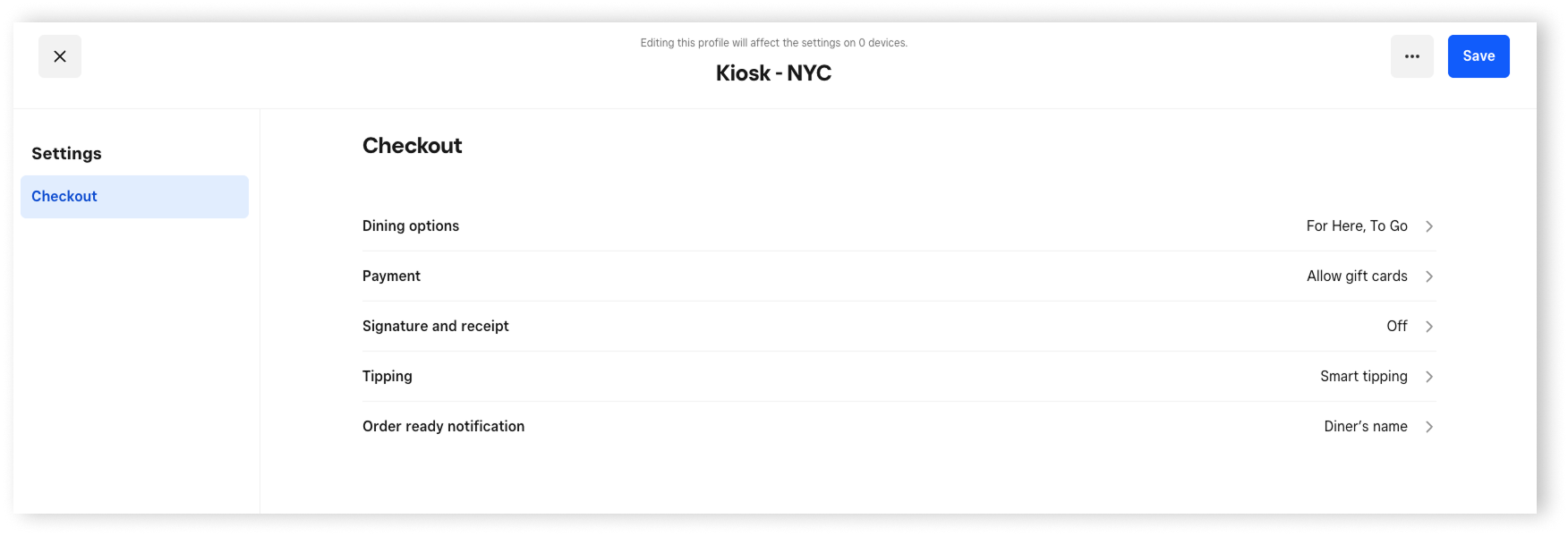
Review the dropdown options below for more details about the kiosk settings:
- Click Dining options.
- Click Dining option 1 and Dining option 2 > select For Here and/or To Go. If you only offer one dining option, select None for Dining option 2.
- Click the back arrow to adjust other settings or click Save to save your kiosk mode.
- Click Payment.
- Toggle Gift cards ON.
- Click the back arrow to adjust other settings or click Save to save your kiosk mode.
- Click Signature and receipt.
- Toggle Collect signatures ON.
- Click the back arrow to adjust other settings or click Save to save your kiosk mode.
- Click Tipping.
- Toggle Collect tips ON.
- Select your preferred tip amounts, tip calculation, and allow custom amounts.
- Click the back arrow to adjust other settings or click Save to save your kiosk mode.
- Click Order ready notification.
- If you’d like to collect buyer phone numbers and send notifications when their order is ready, toggle Text message ON. If applicable, toggle Make phone number optional ON.
- Select how you’d like to notify your diners their order is ready:
- Diner’s name - to prompt diners to enter their names when ordering.
- Table number - to provide physical table numbers and deliver orders to the table.
- Order number - to use generated order numbers.
- Click the back arrow to adjust other settings or click Save to save your kiosk mode.
Step 2: Assign Kiosk modes to your kiosk devices
Once you create a kiosk mode, you can assign the mode to a kiosk device to apply and use the settings.
Sign in to Square Dashboard and go to Settings > Device management > Modes > Kiosk.
Select a Kiosk mode.
Click Edit next to Assigned devices.
Search by kiosk device name or filter by location.
Select the kiosk devices you want to apply the Kiosk mode to. You need to be logged into and running the Square Kiosk app for devices to show up.
Click Save.

Edit Kiosk modes
You can make changes to your existing Kiosk modes at any time. Changes you make to the settings automatically update on your kiosk device after you leave the app and re-open it.
- Sign in to Square Dashboard and go to Settings > Device management > Modes > Kiosk.
- Select a Kiosk mode.
- Click Manage under Settings.
- Adjust the dining options, payment, signature and receipt, tipping, and order ready notification settings.
- Click Save.
- Sign in to Square Dashboard and go to Settings > Device management > Modes > Kiosk.
- Select a Kiosk mode.
- Click Rename and enter the new name for the Kiosk mode.
- Click Save.
- Sign in to Square Dashboard and go to Settings > Device management > Modes > Kiosk.
- Select a Kiosk mode.
- Click the three dots (•••) > Duplicate mode.
- Enter a mode name for the duplicated mode.
- Click Save.
- Sign in to Square Dashboard and go to Settings > Device management > Modes > Kiosk.
- Select a Kiosk mode.
- Click the three dots (•••) > Delete mode.
- Click Save.