Preview your customer ordering experience on Square Kiosk
About your customer ordering experience on Square Kiosk
Customers can place orders at your Square Kiosk from the selection of items you add to your kiosk menu.
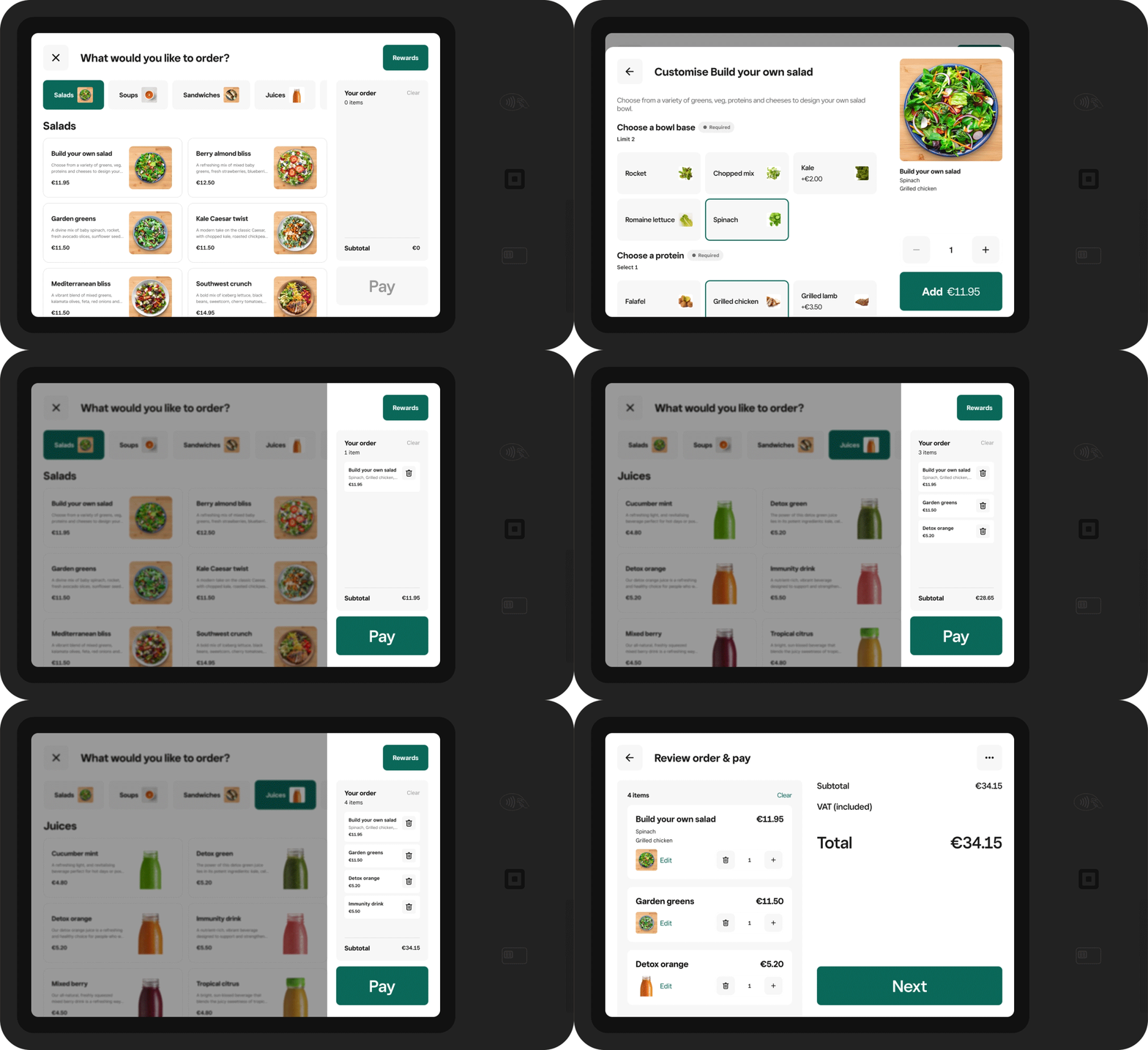
Below is a simplified example of what the customer ordering process looks like. Everything is optimised to drive more sales for your business, with features like picture-based categories, large font and tap targets, smart upsell recommendations, and a persistent basket that stays visible as a diner keeps adding items.
Before you begin
You can preview your customer order experience from the Square Kiosk app, including how to redeem loyalty rewards. Learn how to create a loyalty programme and enrol in a Square seller’s loyalty programme.
Before you can preview your exact customer ordering experience for your business, you need to set up your Square Kiosk by creating a device code and using it to sign in to the Square Kiosk app. Learn how to set up Square Kiosk.
Preview your customer’s ordering experience on Square Kiosk
Open your Square Kiosk app from the iPad plugged into your Square Kiosk hardware.
Tap Sign in and enter your device code.
Tap Start an order.
Select the dining option, Eat-in or Takeaway.
Select a category.
Select items from the menu.
Customise the selection by choosing item modifiers and variations.
Tap + to increase the item quantity or tap - to decrease the item quantity.
Tap Add to add the item to the order. Added items will show under Your order.
Repeat those steps to add more items. Categories will show at the top of the screen.
When you’re ready to pay, tap Pay.
Review your order and tap Next. If smart upsells is enabled, additional item suggestions may appear on this screen before you proceed to payment. Learn how to manage Smart Upsells on Square Kiosk.
If applicable, enter your table number, name or phone number and tap Next.
Complete the payment.
- Tap Rewards in the top-right-hand corner and enter your phone number.
- Tap Sign in or join to enrol or sign in to your loyalty programme.
- After you sign in, you can see your total points and available rewards.
- Tap Redeem to claim a reward or tap Done to go back to ordering.
- If you’re redeeming an item or category reward, close the loyalty window and make sure your order meets the requirements by adding the correct item.
- Complete the order and pay.
If you don’t sign in while placing your order, you can enrol after you pay by tapping Claim Points.
Note: When diners enter their phone number for text message order-ready notifications, the Square Kiosk app will automatically link their loyalty information. Learn how to adjust Square Kiosk checkout and order notification settings.